Replacing a projector or wall chart with a computer-based acuity system takes about half an hour and a few deliberate configuration choices. This guide walks through each step so your digital eye chart is calibrated, standards-compliant, and ready for clinical use.
What you need before you start
- A 20–24″ display for the patient (matte or anti-glare preferred)
- A computer with dual video output (for Legacy) or any modern computer with a browser (for Cloud)
- A tape measure and the acuity software
Step-by-step setup
Step 1 — Choose and position the patient display
Select a monitor with a native resolution high enough to render small optotypes crisply. Mount it at the patient's eye level at the far end of the lane. Avoid glossy screens that reflect room lighting, which reduces effective contrast.
Step 2 — Configure the dual-display layout
Set the clinician's control screen as the primary display and the patient-facing monitor as the secondary, extended display. This keeps your controls private while the patient sees only the chart. Single-screen and mirror modes are also available for compact lanes.
Step 3 — Measure the patient-to-screen distance
Measure the exact distance from where the patient sits to the face of the monitor, in feet or meters. Accuracy here matters: the software uses this number to compute correct optotype sizes. If you use a mirror, measure the total optical path length.
Step 4 — Calibrate optotype size
Enter the distance and the physical screen dimensions into the software. It then calculates the correct pixel size for each acuity line so that, for example, the 20/20 row subtends exactly 5 arc-minutes at your specific distance. Verify by measuring a displayed letter against the on-screen calibration guide.
Step 5 — Confirm luminance meets ANSI Z80.21
Set the monitor brightness so the white background falls within the ANSI Z80.21 range of 80–320 cd/m². Most clinical monitors at roughly 70–85% brightness in normal room lighting meet this; a simple luminance meter confirms it.
Step 6 — Set up mirror mode if needed
In short lanes, enable mirror mode to flip the chart for display via a mirror behind the patient. The software reverses the optotypes so they read correctly in the reflection.
Calibration is the whole game. A digital chart is only as accurate as its distance setting. Re-verify calibration any time you move the monitor or change the lane layout.
Why software beats a projector here
Once calibrated, a digital system gives you every chart type — Snellen, ETDRS, color vision, contrast sensitivity, Worth 4-Dot, and pediatric optotypes — from the same screen, with randomized letters to prevent memorization. There are no bulbs to replace and no warm-up delay between patients.
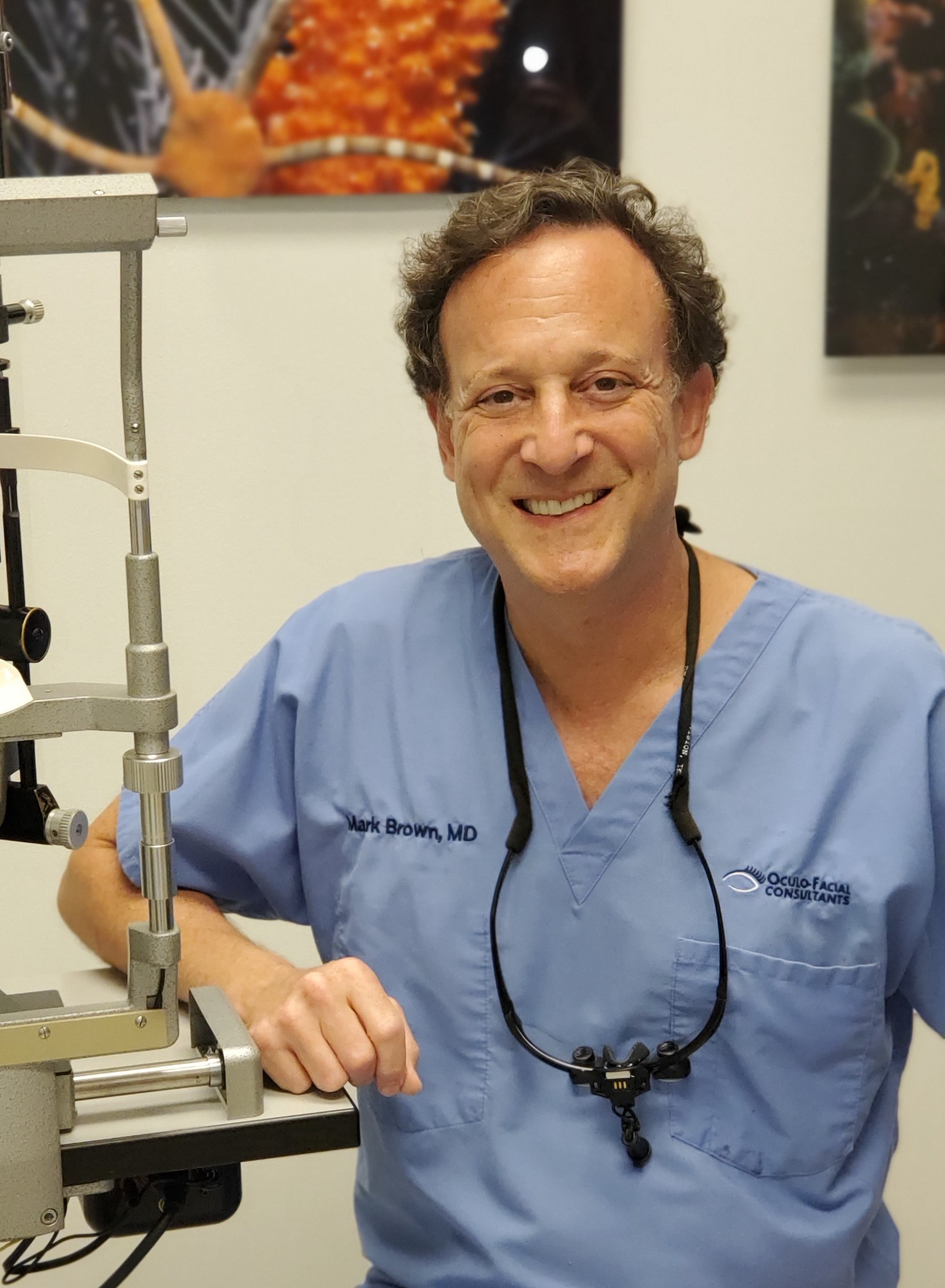
Mark S. Brown, MD
Oculoplastic surgeon at Oculo-Facial Consultants and founder of AcuityMaster. In clinical practice since 1998, Dr. Brown built AcuityMaster to bring standards-compliant acuity testing to every exam lane.